Showing posts with label layout(). Show all posts

Monday, September 24, 2012

Example 10.3: Enhanced scatterplot with marginal histograms


Back in example 8.41 we showed how to make a graphic combining a scatterplot with histograms of each variable. A commenter suggested we change the R graphic to allow post-hoc plotting of, for example, lowess lines. In addition, there are further refinements to be made.

In this R-only entry, we'll make the figure more flexible and a bit more robust. See the example linked above for SAS code, or check out Rick Wicklin discussing the same subject-- Rick gives some additional resources.


R
The R code relies heavily on the layout() function. We discussed it last time in a simpler setting with only one column of plots. The goal for the current plot is to enable a title for the whole figure-- this ought to be centered over the whole graphic-- and x- and y-axis labels. In the previous version, there was no title to the page at all and the axis titles would occasionally fail. To do this, we need a layout with a single cell at the top for the whole width of the graphic, a tall narrow cell at the left for the y-axis title, only in the bottom row, and a thin cell at the bottom, only on the left, for the x-axis title. This turns out to be fairly simple with layout() and the results can be checked with layout.show().
zones <- matrix(c(1,1,1, 
                  0,5,0, 
                  2,6,4, 
                  0,3,0), ncol = 3, byrow = TRUE)
layout(zones, widths=c(0.3,4,1), heights = c(1,3,10,.75))
layout.show(n=6)

The matrix input tells R to make the whole first row a single plot area, and that this will be the first thing plotted. The corners of the remaining 3*3 plot cells will be empty. The numbers in the matrix give the order in which the plot cells will be filled. This matrix is the key input to layout(), where we use the remaining options to give the relative widths and heights of the cells. It's possible to do this in the abstract, but is helpful to draw the intended layout first, then test whether the intended design was a achieved using the layout.show() function. The result is shown below. Putting the scatterplot in last will be useful for adding to it post hoc.


With that in hand, it's time to make a function. In generating last week's example, we noted that the layout persists-- that is, the graphics area retains the layout until you shut the graphics device or restore the old parameters. In the new plot, we'll add an option to revert to the old parameters (by default) or retain them. The latter option would be desirable, if, as suggested by a commenter, you wanted to add items to the scatterplot after generating the plot. We also add an option to allow different sized plot symbols.
scatterhist <- function(x, y, xlab = "", ylab = "", plottitle="", 
                        xsize=1, cleanup=TRUE,...){
  # save the old graphics settings-- they may be needed
  def.par <- par(no.readonly = TRUE)
  
  zones <- matrix(c(1,1,1, 0,5,0, 2,6,4, 0,3,0), ncol = 3, byrow = TRUE)
  layout(zones, widths=c(0.3,4,1), heights = c(1,3,10,.75))
  
  # tuning to plot histograms nicely
  xhist <- hist(x, plot = FALSE)
  yhist <- hist(y, plot = FALSE)
  top <- max(c(xhist$counts, yhist$counts))
  
  # for all three titles: 
  #   drop the axis titles and omit boxes, set up margins
  par(xaxt="n", yaxt="n",bty="n",  mar = c(.3,2,.3,0) +.05)
  # fig 1 from the layout
  plot(x=1,y=1,type="n",ylim=c(-1,1), xlim=c(-1,1))
  text(0,0,paste(plottitle), cex=2)
  # fig 2
  plot(x=1,y=1,type="n",ylim=c(-1,1), xlim=c(-1,1))
  text(0,0,paste(ylab), cex=1.5, srt=90)
  # fig 3
  plot(x=1,y=1,type="n",ylim=c(-1,1), xlim=c(-1,1))
  text(0,0,paste(xlab), cex=1.5)
  
  # fig 4, the first histogram, needs different margins
  # no margin on the left
  par(mar = c(2,0,1,1))
  barplot(yhist$counts, axes = FALSE, xlim = c(0, top),
          space = 0, horiz = TRUE)
  # fig 5, other histogram needs no margin on the bottom
  par(mar = c(0,2,1,1))
  barplot(xhist$counts, axes = FALSE, ylim = c(0, top), space = 0)
  # fig 6, finally, the scatterplot-- needs regular axes, different margins
  par(mar = c(2,2,.5,.5), xaxt="s", yaxt="s", bty="n")
  # this color allows traparency & overplotting-- useful if a lot of points
  plot(x, y , pch=19, col="#00000022", cex=xsize, ...)
  
  # reset the graphics, if desired 
  if(cleanup) {par(def.par)}
}

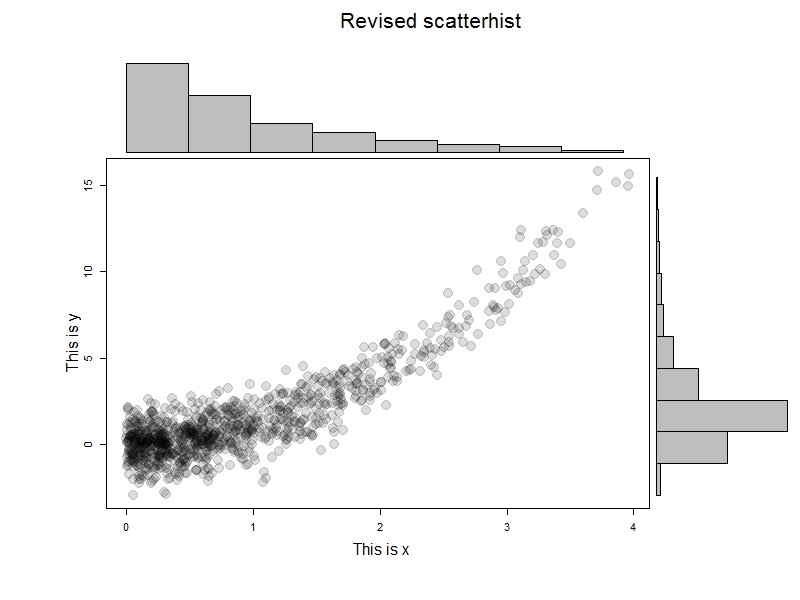
To test this, we'll generate some data and try it out. The results are immediately below; I like this example to help demonstrate that it's not the marginal normality of the data that matter.
x=rexp(1000)
y = x^2 + rnorm(1000)
scatterhist(x[x<4], y[x<4], ylab="This is x", xlab="This is y",   
  "Revised scatterhist", xsize =2)

But let's take advantage of the ability to add curves to the scatterplot.
x=rexp(1000)
y = x^2 + rnorm(1000)
scatterhist(x[x<4], y[x<4], ylab="This is x", xlab="This is y",   
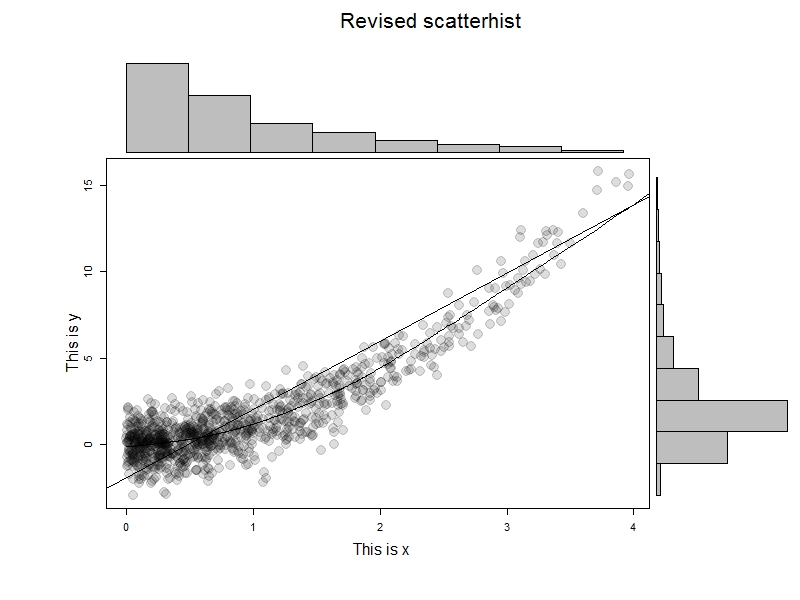
  "Revised scatterhist", xsize =2, cleanup=FALSE)
abline(lm(y~x))
lines(lowess(x,y))

The results are shown at the top-- we can do anything with the scatterplot that we'd be able to do if there were no layout() in effect.


An unrelated note about aggregators:We love aggregators! Aggregators collect blogs that have similar coverage for the convenience of readers, and for blog authors they offer a way to reach new audiences. SAS and R is aggregated by R-bloggers, PROC-X, and statsblogs with our permission, and by at least 2 other aggregating services which have never contacted us. If you read this on an aggregator that does not credit the blogs it incorporates, please come visit us at SAS and R. We answer comments there and offer direct subscriptions if you like our content. In addition, no one is allowed to profit by this work under our license; if you see advertisements on this page, the aggregator is violating the terms by which we publish our work.

Monday, September 17, 2012

Example 10.2: Custom graphic layouts


In example 10.1 we introduced data from a CPAP machine. In brief, it's hard to tell exactly what's being recorded in the data set, but it seems to be related to the pattern of breathing. Measurements are taken five times a second, leading to on the order of 100,000 data points in a typical night. To get a visual sense of what a night's breathing looks like is therefore non-trivial.

Today, we'll make the graphic shown above, which presents an hour of data.

SAS
In SAS, the sgpanel procedure (section 5.1.11) will produce a similar graphic pretty easily. But we need to make a data set with indicators of the hour, and of ten-minute blocks within the hour. This we'll do with the ceil function (section 1.8.4).

data cycles2;
set cycles;
hour = ceil(time_min/60);
tenmin = ceil(time_min/10);
time_in_ten = mod(time_min - 1/300,10);
/* 1/300 adjustment keeps last measure in the correct
10-min block */
run;

title "Hour 4 of pressure";
proc sgpanel data = cycles2;
where hour eq 4;
panelby tenmin / layout=rowlattice rows=6 spacing = 4;
colaxis display=none;
rowaxis display = (nolabel);
series x = time_in_ten y = byte;
run; quit;

The resulting plot is shown below. It would be nicer to omit the labels on the right of each plot, but this does not appear to be an option. It would likely only be possible with a fair amount of effort.


R
In R, we'll use the layout() function to make a 7-row layout-- one for the title and 6 for the 10-minute blocks of time. Before we get there, though, we'll construct a function to fill the time block plots with input data. The function accepts a data vector and plots only 3,000 values from it, choosing the values based on an input hour and 10-minute block within the hour. To ensure an equal y-axis range for each call, we'll also send minimum and maximum values as input to the function. All of this will be fed into plot() with the type="l" option to make a line plot.

plot10 = function(hour, tenmins, miny, maxy, data=cycles){
start = hour*18000 + tenmins* 3000 +1
plot((1:3000)/300, cycles[(start + 1):(start +3000)],
ylim = c(miny,maxy),type="l", xaxs="i", yaxs="i")
}

The documentation for layout() is rather opaque, so we'll review it separately.

oldpar = par(no.readonly = TRUE)
# revert to this later

layout(matrix(1:7), widths=1, heights=c(3,8,8,8,8,8,8), respect=FALSE)

The layout() function divides the plot area into a matrix of cells, some of which will be filled by the next output plots. The first argument says where in the matrix the next N objects will go. All the integers 1...N must appear in the matrix; cells that will be left empty have a 0 instead. Here, we have no empty cells, and only one column, so the "matrix" is really just a vector with 1...7 in order. The widths option specifies the relative widths of the columns-- here we have only one column so any constant will result in the use of the whole width of the output area. Similarly, the heightsoption gives the relative height of the cells. Here the title will get 3/51 of the height, while each 10-minute block will get 8/51. This unequal shape of the plot regions is one reason to prefer layout() to some other ways to plot multiple images on a page. The respect option, when "TRUE" makes the otherwise relative widths and heights conform, so that a unit of height is equal to a unit of width. We also use layout() in example 8.41.

With the layout in hand, we're ready to fill it.

par(xaxt="n", mar = c(.3,2,.3,0) +.05)
# drop the x-axis, change the spacing around the plot
plot(x=1,y=1,type="n",ylim=c(-1,1), xlim=c(-1,1), yaxt="n",bty="n")
# the first (narrow) plot is just empty
hour=3
text(0,0,paste("Hour ", (hour + 1), " of pressure data"), cex=2)
# text to put in the first plot
miny = min(cycles[(hour * 18000 + 1):((hour + 1) * 18000)])
maxy = max(cycles[(hour * 18000 + 1):((hour + 1) * 18000)])
# find min and max across the whole hour, to keep range
# of y-axis constant across the plots
for (x in 0:5) plot10(hour, x, miny, maxy)
# plot the 6 ten-minute blocks
par(oldpar)
# reset the graphics options

The resulting plot is shown at the top of the entry. There's clearly something odd going on around 11-15 minutes into the hour-- this could be a misadjusted mask, or a real problem with the breathing. There's also a period around 58 minutes when it looks like breathing stops. That's what the machine is meant to stop.


An unrelated note about aggregatorsWe love aggregators! Aggregators collect blogs that have similar coverage for the convenience of readers, and for blog authors they offer a way to reach new audiences. SAS and R is aggregated by R-bloggers, PROC-X, and statsblogs with our permission, and by at least 2 other aggregating services which have never contacted us. If you read this on an aggregator that does not credit the blogs it incorporates, please come visit us at SAS and R. We answer comments there and offer direct subscriptions if you like our content. In addition, no one is allowed to profit by this work under our license; if you see advertisements on this page, the aggregator is violating the terms by which we publish our work.

Monday, June 20, 2011

Example 8.41: Scatterplot with marginal histograms


The scatterplot is one of the most ubiquitous, and useful graphics. It's also very basic. One of its shortcomings is that it can hide important aspects of the marginal distributions of the two variables. To address this weakness, you can add a histogram of each margin to the plot. We demonstrate using the SF-36 MCS and PCS subscales in the HELP data set.

SAS
SAS provides code to perform this using proc template and proc sgrender. These procedures are not intended for casual or typical SAS users. Its syntax is, to our eyes, awkward. This is roughly analogous to R functions that simply call C routines. Nonetheless, it's possible to adapt code that works. The code linked above was edited to set the transparency to 0 and to change the plotted symbol size to 5 from 11px. These options appear in the scatterplot statement about midway through the code.

Once the edited code is submitted, the following lines produce the plot shown above.

proc sgrender data="C:\book\help.sas7bdat" template=scatterhist;
dynamic YVAR="mcs" XVAR="pcs"
TITLE="MCS-PCS Relationship";
run;


R
For R, we adapted some code found in an old R-help post to generate the following function. The mtext() function puts text in the margins and is used here to label the axes. The at option in that function centers the label within the scatterplot data using some algebra.

scatterhist = function(x, y, xlab="", ylab=""){
zones=matrix(c(2,0,1,3), ncol=2, byrow=TRUE)
layout(zones, widths=c(4/5,1/5), heights=c(1/5,4/5))
xhist = hist(x, plot=FALSE)
yhist = hist(y, plot=FALSE)
top = max(c(xhist$counts, yhist$counts))
par(mar=c(3,3,1,1))
plot(x,y)
par(mar=c(0,3,1,1))
barplot(xhist$counts, axes=FALSE, ylim=c(0, top), space=0)
par(mar=c(3,0,1,1))
barplot(yhist$counts, axes=FALSE, xlim=c(0, top), space=0, horiz=TRUE)
par(oma=c(3,3,0,0))
mtext(xlab, side=1, line=1, outer=TRUE, adj=0,
at=.8 * (mean(x) - min(x))/(max(x)-min(x)))
mtext(ylab, side=2, line=1, outer=TRUE, adj=0,
at=(.8 * (mean(y) - min(y))/(max(y) - min(y))))
}

The results of the following code are shown below.

ds = read.csv("http://www.math.smith.edu/r/data/help.csv")
with(ds, scatterhist(mcs, pcs, xlab="MCS", ylab="PCS"))